
Use Bredbox on iPhone and Android
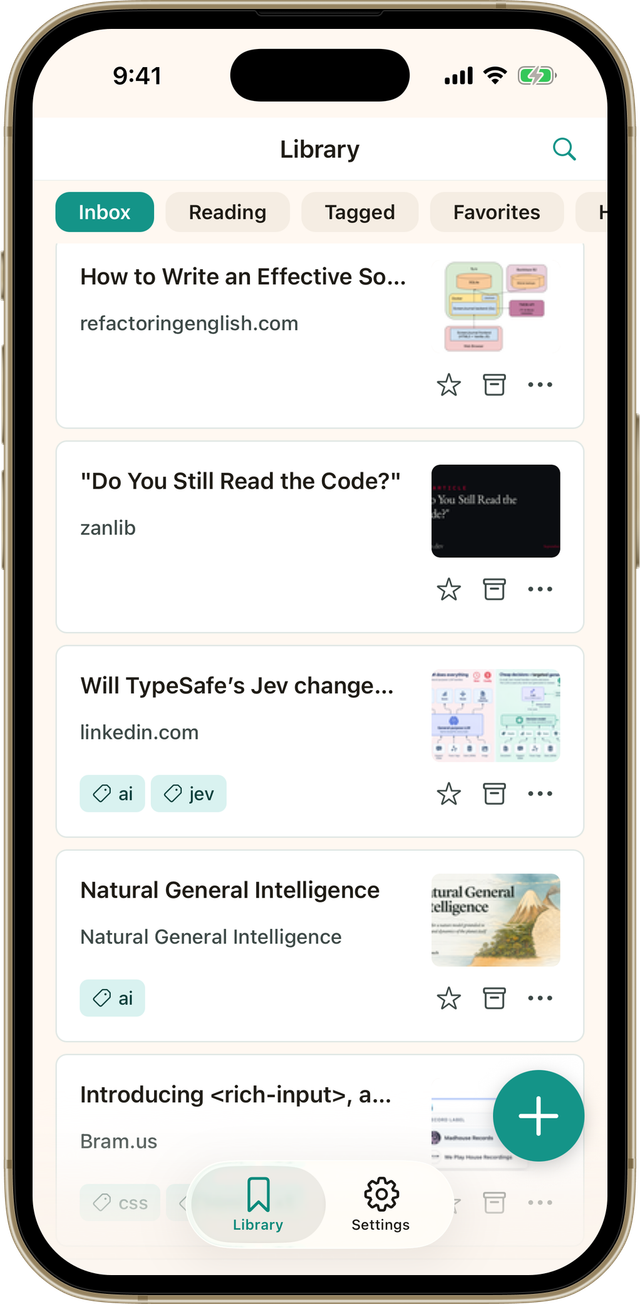
The Bredbox app puts your library within reach. Save something at your desk, find it on your phone when the moment is right, or open a recipe on a tablet in the kitchen.
Install and sign in
Section titled “Install and sign in”- Install Bredbox from the App Store on iPhone or iPad, or from Google Play on Android.
- Open the app and tap Login.
- Sign in with the same method you use on bredbox.app. Your saves, tags, collections, and reading progress will appear in the app.
New to Bredbox? Tap Sign up. The app opens the sign-up page in your browser, then you can return to the app and log in.
Use the same sign-in method every time. For example, if you created your account with Google, choose Google in the app too.
Save from another app
Section titled “Save from another app”When you find something worth keeping in a browser, news app, social app, or recipe app, use its normal Share button.
- Tap Share on the page or post.
- Choose Bredbox from the sharing options. On iPhone or iPad, you may need to tap More the first time and add Bredbox to your favorites.
- Confirm the save.
The link is added to your library without making you copy and paste it first. Bredbox can finish processing page details after you move on, so a title, image, or clean reading view may take a moment to appear.
Find what you saved
Section titled “Find what you saved”Open the app when you are ready to come back to something. Your newest saves are in your library, and search is there for the times you remember the idea but not the title.
- Search for a word, topic, site, or phrase you remember.
- Use tags and collections to return to a project, a reading list, or a set of recipes.
- Open a save to read the clean article or recipe view when one is available.
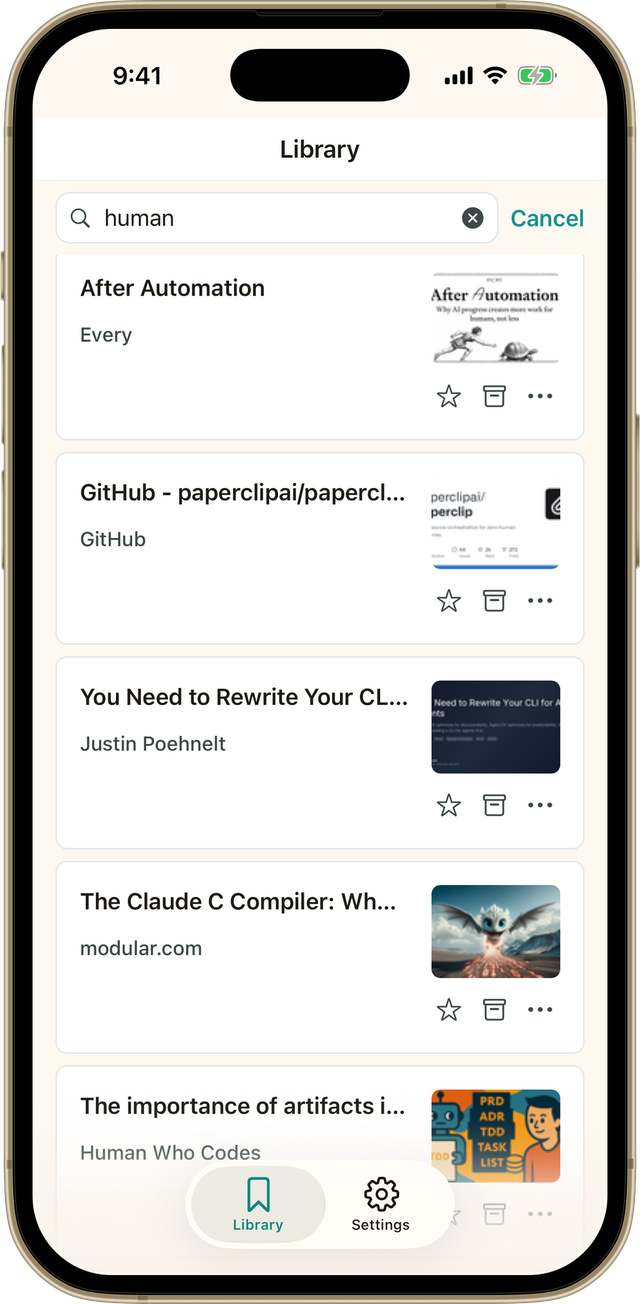
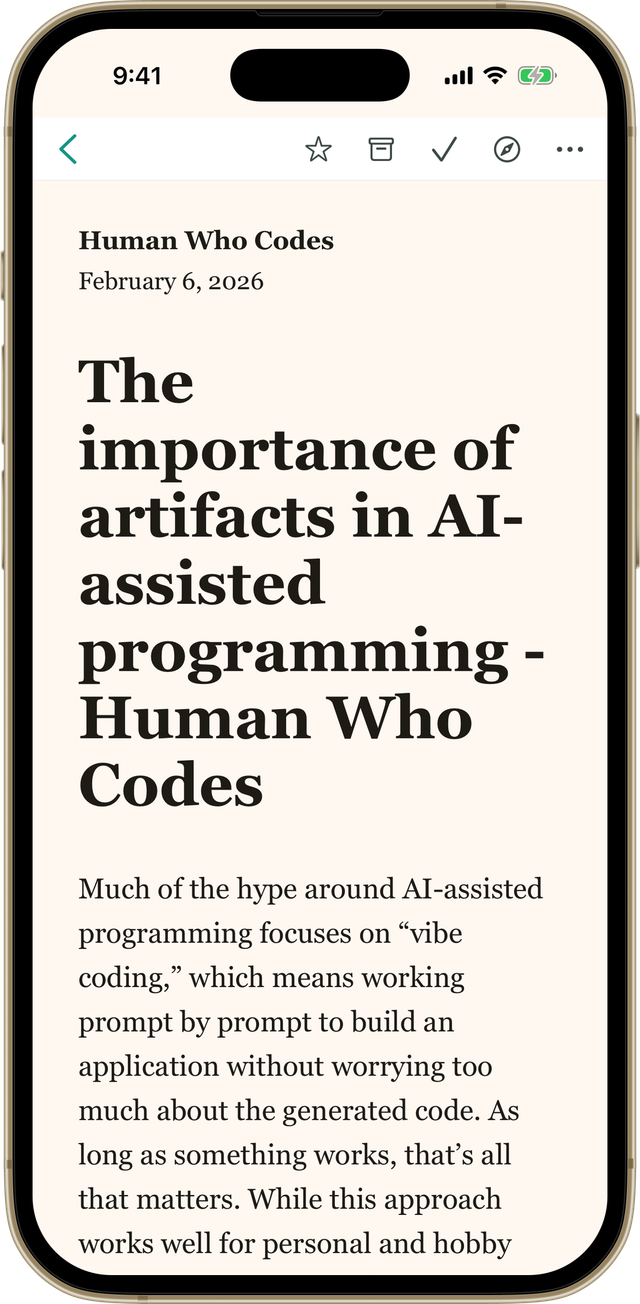
This is especially useful when a good article turns up at an inconvenient time, you need a reference you found months ago, or you are choosing dinner while standing in the store.
Keep your library in sync
Section titled “Keep your library in sync”Your library belongs to your account, not to one device. When you are signed in, the app and bredbox.app use the same library, so a save you make on one is available from the other.
For a bigger screen, you can switch between the app and bredbox.app at any time. The library stays the same.
If something does not look right
Section titled “If something does not look right”First, check that you are signed in with the same account and sign-in method you use on the web. Then make sure your device is online and reopen the app to let it sync.
For help with a specific problem, see Common problems or contact support. Include whether you are using iOS or Android and the app version from Settings → App Version.