
Manage saved links
Once a link is in Bredbox, the save options menu is the quickest way to keep it useful.
Open the save options menu
Section titled “Open the save options menu”Every save in a list or grid has a ⋯ button: click it to open the options menu:
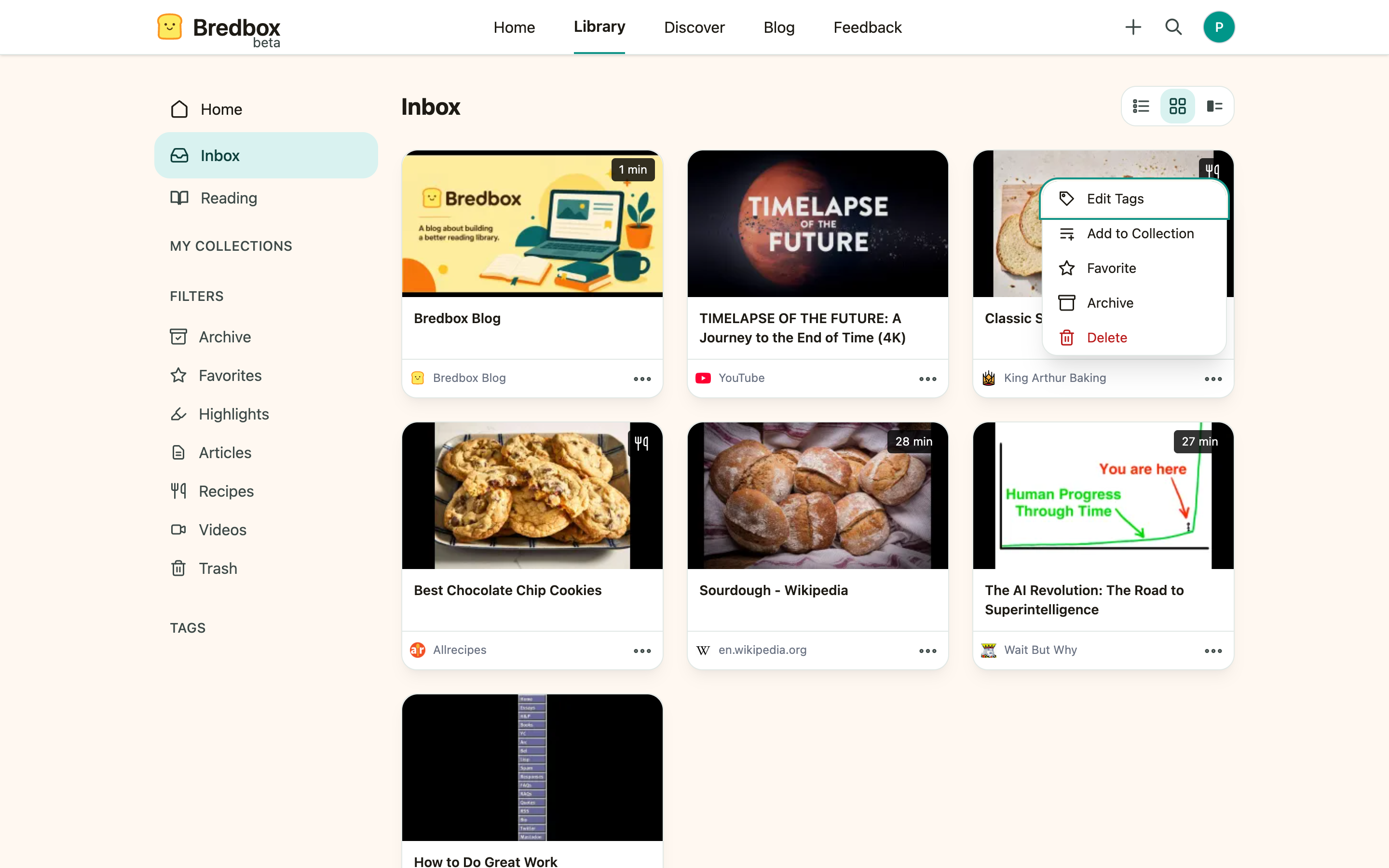
The menu offers:
- Edit Tags: add or remove tags for the save.
- Add to Collection: put the save in one of your collections.
- Favorite / Unfavorite: pin the save to your Favorites view.
- Archive / Unarchive: move the save out of your Inbox, or back in.
- Mark read / Mark unread: set the reading status of an article by hand.
- Delete: move the save to Trash.
Add or edit tags
Section titled “Add or edit tags”Tags are useful when a save belongs to more than one idea.
- Open the save options menu and choose Edit Tags.
- Type a tag and press Enter to add it; click the × on a tag to remove it. Tags you already use are suggested as you type.
- Save your changes.
Bredbox keeps tag formatting consistent and allows up to 10 tags on a single save. See Use tags for tagging ideas.
Add a save to a collection
Section titled “Add a save to a collection”Use collections when the save belongs in a focused project, topic, or reading queue.
- Open the save options menu and choose Add to Collection.
- Pick the collection you want.
- Confirm the change.
You can still use tags on the same save after adding it to a collection.
Favorite important saves
Section titled “Favorite important saves”Favorite a save when you want it to stay easy to reach without changing where it lives.
Favorites are helpful for:
- Links you use often
- Articles you plan to read soon
- Reference material you do not want to lose in a long list
Open Favorites in the sidebar to see everything you marked this way.
Archive finished saves
Section titled “Archive finished saves”Archive a save when you want to keep it but remove it from your Inbox.
Archived saves are not deleted. They remain available from the Archive view, search, tags, and collections. Re-saving the same URL brings an archived save back to your Inbox.
Mark an article read or unread
Section titled “Mark an article read or unread”Bredbox tracks your reading progress automatically, but you can set the status yourself: choose Mark read or Mark unread from the menu (or press M with the save selected).
Delete saves you no longer need
Section titled “Delete saves you no longer need”Delete moves the save to Trash, where it waits 30 days before being removed for good, so a slip of the mouse never costs you a link. See Delete and restore saves for how to bring one back.
If you are trying to reduce clutter but might need the link later, archive it instead.
Change several saves at once
Section titled “Change several saves at once”Tagging, archiving, or deleting a whole batch one by one gets old fast. Use the selection checkboxes to select multiple saves and apply one action to all of them.