
Import your library
Import is the fastest way to make Bredbox useful on day one. Years of saves from another app can be in your library in a few minutes.
Formats Bredbox accepts
Section titled “Formats Bredbox accepts”| Coming from… | Export as… | What carries over |
|---|---|---|
| CSV, or the full ZIP archive Pocket produces | URLs, titles, tags, saved dates, archive state | |
| Bredbox | The full archive from Export your data | Everything, including collections, highlights, and comments |
| Instapaper | CSV | URLs, titles, folders, archive status, timestamps |
| A web browser | Bookmarks HTML file | URLs, titles, folders as tags, add dates |
| Anywhere else | A plain .txt file, one URL per line |
URLs (lines starting with http:// or https://) |
Importing a Bredbox archive back into Bredbox brings your highlights and their comments with it, so an export is a usable backup rather than a read-only copy.
Run an import
Section titled “Run an import”The steps are the same for every format:
- Export your data from the other app first. (In Pocket that’s Export on the website; in Instapaper it’s Settings → Export; in your browser it’s the bookmark manager’s Export option. Pocket prepares its export in the background and emails you a download link, so it may take a little while to arrive.)
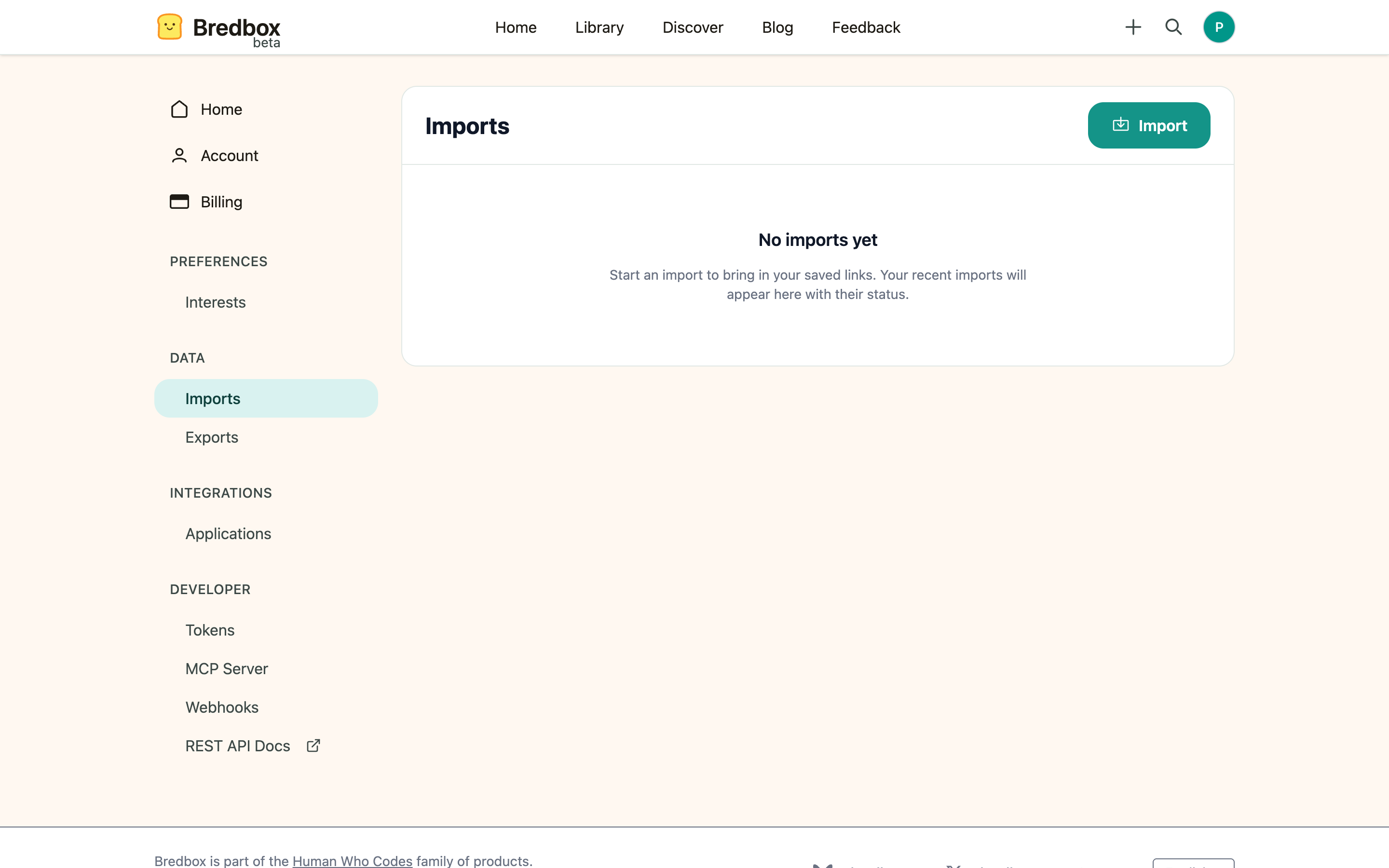
- In Bredbox, open Settings → Imports.
- Choose your file. Bredbox works out the format from the file itself.
- Review the summary of what Bredbox found.
- Start the import.
Import files can be up to 5 MB and 10,000 links each. If your export is bigger, split it and import the pieces. Duplicates are handled for you, so overlapping files are safe.
After the import, Bredbox starts fetching metadata, preview images, and reading views for the links it can understand, so your library fills in over the next little while.
What happens with duplicates
Section titled “What happens with duplicates”If a URL is already in your library, Bredbox keeps your existing save rather than creating a second copy. Importing the same file twice is harmless.
If a highlight comment in an archive is longer than the 2,000-character limit, Bredbox shortens it to fit rather than dropping it, and tells you how many were shortened when the import finishes. The highlighted passage itself is always kept.
Tips for a cleaner import
Section titled “Tips for a cleaner import”- Remove obviously broken bookmarks first, if it’s easy.
- Keep the original export file until you confirm everything arrived.
- After the import, select the new arrivals in bulk to tag or archive them in one pass.
If the import fails
Section titled “If the import fails”Check these first:
- Make sure the file is one of the formats above.
- Re-export the file from the original service rather than reusing a file you know is damaged.
- Confirm the file is not empty and is under 5 MB.