
Listen to articles
Some articles are easier to take in with your eyes closed, your hands busy, or your screen across the room. Bredbox can read any saved article aloud — or any email you forwarded in — using the voices already built into your browser.
Start listening
Section titled “Start listening”- Open an article in the reading view.
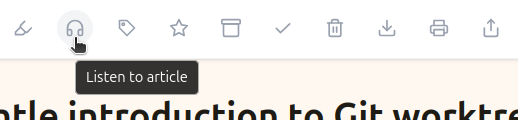
- Click Listen to article: the headphones button just to the right of Toggle highlights in the toolbar.
- A small player window opens. Press Play.
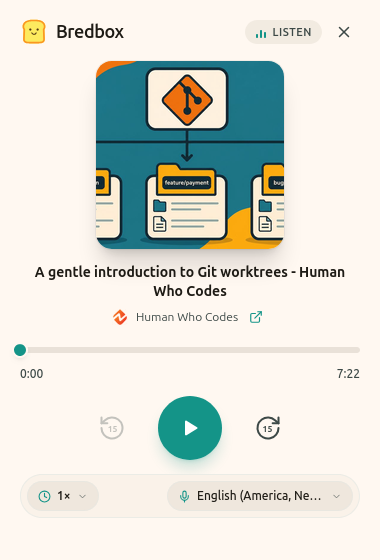
The player shows the article’s image and title, a progress bar for how far through the article you are, and the controls. The article stays open behind it, exactly where you left it, so you can read along, keep browsing, or put the player in a corner and forget about it.
If nothing opens, your browser blocked the window. Bredbox tells you when that happens: allow popups for Bredbox in your browser’s settings and click the headphones button again.
Control playback
Section titled “Control playback”- Play and Pause start and stop the speech.
- Back 15 seconds and Forward 15 seconds skip around, and you can drag the progress bar to jump anywhere in the article.
- View original opens the article’s source page.
- Close player stops listening and closes the window.
Only one article plays at a time. Starting the player on a second article stops the first, remembering where it was.
Choose a voice and speed
Section titled “Choose a voice and speed”Pick a speed from 0.75× to 2×, and a voice from the list. Changes take effect straight away.
The voices come from your browser and operating system, so the list differs from one browser or device to another: a new voice installed on your computer shows up here too. Bredbox remembers the voice and speed you chose, in that browser. Another browser or device starts with its own defaults.
If the voice you picked before isn’t available anymore, the player uses your browser’s default voice so you can still listen, and goes back to yours when it returns.
Pick up where you stopped
Section titled “Pick up where you stopped”Pause or close the player partway through and Bredbox saves your place. Open the player for that article again, later, or in another browser you’re signed in to, and Play carries on from there. The first time you listen to an article, it starts from the beginning.
Your listening position is kept separately from your reading progress. Listening never moves the point where the reader reopens, and reading never moves where the player resumes, so you can read half an article on your laptop and listen to the rest on a walk without one undoing the other.
When the player reaches the end of the article, it stops there. Press Play to hear it again from the beginning.
What you can listen to
Section titled “What you can listen to”Listening works on saves with text Bredbox extracted: article saves, and emails you forwarded in — both open in the reading view. Recipes, videos, images, PDFs, and other documents don’t have the headphones button.
The button doesn’t appear when:
- Your browser doesn’t support speech, or hasn’t made any voices available. Most current browsers on desktop and mobile support it. Some list their voices a moment after the page loads, so the button can appear shortly after the article does.
- Your account is in read-only mode.
If the player says your listening position couldn’t be saved, playback carries on, but reopening the player later may take you back to the last place Bredbox was able to save.