
Send to Kindle
Bredbox can email a save to your Kindle as an e-book. Send one article or recipe, or select several and they arrive as a single digest with a table of contents. Pictures come along, so it reads like it does in Bredbox.
Set it up once
Section titled “Set it up once”Your Kindle has its own email address, and it only accepts files from senders you approve. Both live in Amazon under Manage Your Content and Devices → Preferences → Personal Document Settings. Amazon’s help explains where to find your Kindle’s email address and how to approve a sender.
- Open Settings → Email → Kindle in Bredbox.
- Under Kindle address, enter your Kindle’s address and select Save. It ends in
@kindle.comor@free.kindle.com. - Under Sender to approve, copy
publish@kindle.bredbox.appand add it to your Approved Personal Document E-mail List in Amazon. Amazon’s steps for adding an approved sender walk you through it.
If you skip the approval step, Amazon quietly drops what Bredbox sends, and nothing reaches your Kindle.
You can also enter your address the first time you send something: the Send To dialog asks for it when none is saved.
Whenever your Kindle address is added, changed, or removed, Bredbox emails you to say so. If you didn’t make the change, change your password and check the address in Settings → Email → Kindle.
Send one save
Section titled “Send one save”-
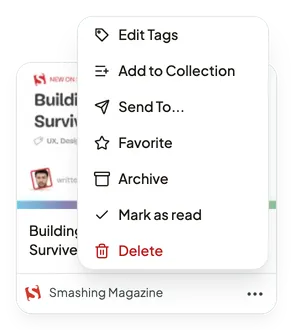
Open the save’s ⋯ options menu and choose Send To…, or select the Send To button in a list or detail row.
-
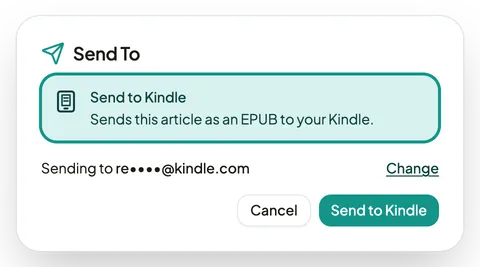
Check the address under Sending to and select Send to Kindle. To use a different address, select Change, which opens your Kindle settings in a new tab.
Only articles and recipes can be sent. Send To doesn’t appear on videos, PDFs, images, or saved emails, or on a save Bredbox couldn’t read the content of.
Send several as a digest
Section titled “Send several as a digest”- Select the saves you want.
- Select Send To in the bulk actions bar, then Send to Kindle.
The dialog tells you what will be sent, for example “Sends 3 articles and 1 recipe as one EPUB digest with a table of contents.” Anything in the selection that can’t be sent is listed as skipped, and the rest still go.
The digest keeps the saves in the order they appear in your list, and is titled with the date, like Bredbox Digest for October 21, 2026 #1. A digest can hold up to 100 saves.
Follow a delivery
Section titled “Follow a delivery”Every send appears under Recent Deliveries in Settings → Email → Kindle, newest first. Each delivery shows its title, type, the address it went to, when you sent it, and its status:
- Queued: waiting its turn.
- Preparing: Bredbox is building the e-book and emailing it.
- Sent: Bredbox has emailed it to your Kindle. It usually appears within a few minutes.
- Failed: it didn’t go. Select the delivery to see why.
The status updates on its own while the page is open. Select any delivery to see what was in it and what happened to each save: included, skipped, or left out because it was no longer available.
Bredbox keeps your delivery history for 180 days.
When a delivery fails
Section titled “When a delivery fails”Select the failed delivery to see the reason, then select Retry to send it again. The most common reasons:
- The address was rejected. Check that the address in Bredbox matches the one in your Amazon settings.
- The file was too large. Pictures alone never cause this, because Bredbox shrinks or leaves out pictures to make a delivery fit. It happens when the text of a digest with many long saves is more than a Kindle email allows. Send fewer saves at once.
- We couldn’t confirm the email was sent. Check your Kindle before you retry, so you don’t end up with two copies.
If a delivery shows Sent but never appears on your Kindle, the usual cause is that publish@kindle.bredbox.app isn’t on your Approved Personal Document E-mail List yet. Add it, then send it again.
About the pictures
Section titled “About the pictures”Bredbox embeds up to 40 pictures from each save, resized to suit an e-reader.
A Kindle email can only be so large, so when a delivery would go over, Bredbox makes its pictures smaller, a step at a time, until it fits:
- Photos stay recognizable at every step, though they can look softer than the original when they fill the screen.
- Screenshots, charts, and diagrams are usually kept larger, because their text is the first thing to blur. Even so, small text in a picture can become hard to read, and zooming in on your Kindle won’t sharpen it.
If even the smallest pictures won’t fit, the delivery is sent without them. A picture that can’t be fetched, or that would push the delivery past its picture allowance, is also left out. Either way its caption is kept, and the delivery’s details say how many pictures were left out.
To keep pictures sharp, send fewer saves at once. A single save, or a digest of a few, usually arrives with its pictures at full detail.
Limits
Section titled “Limits”- Up to 20 deliveries a day.
- Up to 3 deliveries in progress at once. Wait for one to finish before sending another.
- Up to 100 saves in one digest.
- Up to 5 Kindle address changes a day.
While your account is read-only
Section titled “While your account is read-only”If your subscription lapses, Settings → Email → Kindle still shows your address and your delivery history, but you can’t send, retry, or change the address until a plan is active again.